Windows Update error 0x800f0922 occurs when Windows fails to connect to update servers, encounters corrupted update files, lacks space on the System Reserved partition, or experiences issues with .NET Framework dependencies.
An active VPN or proxy often blocks necessary handshakes with Microsoft’s update servers, triggering error 0x800f0922.
Disconnect any active VPN or third-party proxy software.
Go to Settings $\rightarrow$ Network & internet $\rightarrow$ Proxy and toggle off Use a proxy server.
Restart your internet router and try running the update again.
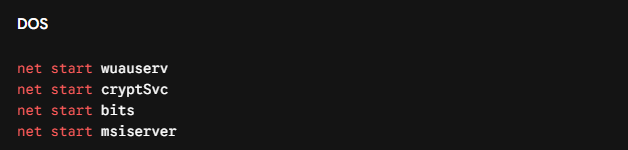
Win + R, type optionalfeatures.exe, and hit Enter.Win + I to open Settings.Win + S, type cmd, right-click Command Prompt, and choose Run as Administrator.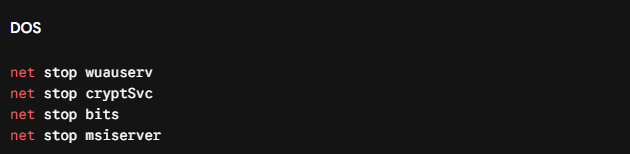

Restart the services and check for updates again:
Windows Update needs sufficient free space (at least 30–50 MB) on the hidden System Reserved / EFI Partition to process setup files.
Press Win + X and select Disk Management.
Locate the System Reserved or EFI System Partition and check its free space.
If it is full, run Disk Cleanup (cleanmgr), select Clean up system files, and remove old installation files.
Alternatively, use a partition manager tool to expand the partition size to at least 500 MB.
System file corruption can block update installation during the final configuration phase.
Open Command Prompt as Administrator.
Repair the component store image:


Reboot your system once the scan hits 100%.
The App Readiness service prepares applications and updates when you sign in or reboot. If disabled, update rollbacks with error 0x800f0922 can occur.
Press Win + R, type services.msc, and press Enter.
Locate App Readiness, right-click it, and select Properties.
Change the Startup type to Automatic and click Start.
Click Apply and OK.
Overprotective firewall rules may falsely block svchost connections to Microsoft update servers.
Press Win + S, search for Windows Defender Firewall, and open it.
Click Turn Windows Defender Firewall on or off in the left sidebar.
Temporarily turn off the firewall for Private and Public networks.
Try installing the update, then turn the firewall back on.
9. Manually Install the Update via Microsoft CatalogIf the automatic updater continues to fail, manually install the update package.
Go to Settings $\rightarrow$ Windows Update and note the KB number of the failing update (e.g., KB5077181).
Visit the Microsoft Update Catalog website.
Search for the KB number and download the matching installer for your architecture (x64/ARM64).
Run the downloaded .msu file to update offline.
Windows Update Error 0x800F0922 usually stems from VPN/proxy blocks, a corrupt update cache, missing .NET Framework files, or a full System Reserved partition. Disabling your VPN, enabling .NET components, clearing the cache, or manually installing the update package will quickly fix the issue.